



- An SMTP connector is a protocol bridge between a workflow automation platform and an external mail server. It does not replace the mail server, it routes outbound email through providers the organization already uses, such as Gmail, Outlook, or Amazon SES.
- Enterprise SMTP connectors require four core configuration components before setup: SMTP server address, port number (587 with TLS is recommended), authentication credentials, and encryption settings.
- Mekari Officeless offers a prebuilt SMTP connector for enterprises wanting to build an automated email notification system. For organizations with more specific requirements, Mekari Officeless also provides an enterprise development platform that enables teams to build a fully custom SMTP connector tailored to their unique and complex business processes.
Enterprise workflows today handle approvals, procurement, and system events at scale — yet email notifications remain a manual gap in an otherwise automated chain.
McKinsey Global Institute found that employees spend 28% of their workweek on email alone, much of it on messages that could have been sent automatically.
An SMTP connector addresses this directly. This protocol bridge connects workflow automation platforms to existing email infrastructure so notifications are triggered by the workflow itself, not by a person. It works by routing outbound emails through an external mail server such as Gmail, Outlook, or Amazon SES, using standard authentication and TLS encryption.
This article covers what an SMTP connector is, what you need to configure one, and how to integrate it into your enterprise workflows.
What Is an SMTP Connector?
An SMTP connector is a software component that enables any application, device, or workflow automation platform to send outbound emails through an external mail server using the Simple Mail Transfer Protocol. It does not replace the mail server itself; rather, it routes outbound email through an existing provider the organization already uses, whether that is Gmail, Outlook, Amazon SES, or a custom SMTP server.
The distinction between SMTP and an SMTP connector is worth clarifying. SMTP is the protocol, the internet standard for email transmission that governs how email is transmitted between servers.
Meanwhile, the connector is the implementation of that protocol within a specific platform or system, the component that handles authentication, encryption, and delivery configuration so the platform can send emails without building its own mail infrastructure.
In an enterprise environment, an SMTP connector serves four core functions:
- Outbound email delivery — connects applications or local servers to a third-party SMTP provider such as SendGrid, Mailgun, or Amazon SES
- Mail flow routing — defines how email is directed to specific domains (send connector) or accepted from external sources (receive connector)
- Authentication and security — secures delivery using credential-based login and TLS/SSL encryption
- SMTP relay — enables devices without modern authentication support, such as MFD printers and scanners, to send email through a relay service
Together, these functions position the connector as the layer between the workflow and the mail server. This means that switching providers, adding new ones, or applying different credentials per workflow requires no changes to the workflow logic itself. The connector handles delivery, while the workflow handles the trigger
Why Enterprises Need an SMTP Connector in Their Workflows
Most workflow platforms include a built-in email tool, and for simple use cases it is sufficient. But as workflows scale across departments, providers, and compliance requirements, platform-native email becomes a constraint rather than a solution. An SMTP connector addresses that constraint across four dimensions:
- Reliability and deliverability: Dedicated SMTP providers offer bounce management, delivery queuing, and retry logic that platform-native tools typically lack, which matters for high-volume or time-sensitive workflow notifications
- Security and compliance: TLS/SSL encryption, credential-based authentication, and SMTP server logs give IT teams control over who sends email and a full audit trail of every message delivered
- Provider flexibility: SMTP connector is provider-agnostic so that switching vendors or using different providers per workflow requires no changes to the workflow logic itself
- Separation of concerns: Email delivery infrastructure stays with IT and infra; workflow automation stays with ops and product teams, reducing interdependency and making both layers easier to maintain independently
For enterprise teams, these benefits of an SMTP connector are not nice-to-haves. They are the baseline expectations for any email system operating at scale.
Common SMTP Use Cases for Automated Email Notifications in Enterprises
Enterprise teams integrate SMTP connectors into their workflows for different reasons, but the underlying need is consistent: reliable and automated email delivery that does not depend on manual intervention.
1. Approval Workflow Notifications
Approval workflows are one of the clearest examples of where an automated email notification system earns its value.
Procurement requests, leave submissions, and contract approvals, for instance, all involve multiple stakeholders who need to be notified at the right moment.
An SMTP connector handles that delivery through the organization’s own domain, with follow-up notifications sent automatically when an approval is granted or rejected.
2. Transactional Confirmations
When a form is submitted, a payment is processed, or a contract is signed, the recipient expects an immediate confirmation.
An SMTP connector triggers that email the moment the workflow event occurs, using the organization’s branded sender identity and with delivery logged at the SMTP server level.
3. System and Operational Alerts
Threshold breaches, error detections, and approaching SLAs require immediate visibility.
Rather than relying on manual monitoring, automated workflows can trigger alert emails automatically to the responsible team the moment a condition is met, ensuring no critical event goes unnoticed.
4. Customer-Facing Notifications from Custom Enterprise Apps
Organizations building custom applications on enterprise low-code application platforms like Mekari Officeless can use an SMTP connector to send branded, domain-authenticated emails directly from those apps — keeping communication consistent with the organization’s identity rather than the platform’s.
5. Non-Email Device Relay
Scanners, printers, and multifunction devices often need to send documents or reports by email but do not support modern authentication methods.
A relay path through the organization’s SMTP infrastructure handles that gap, routing outbound email from these devices without requiring credential changes at the device level.
What you need before setting up an SMTP connector
Before configuring an SMTP connector and activating the use cases above, four components need to be in place.
Getting these right from the start avoids the most common configuration errors and ensures reliable delivery in production.
1. SMTP Server Address
The SMTP server address is the hostname of the mail server that will handle outbound email delivery. It is specific to the chosen provider and must be entered exactly as specified — even a minor typo here will prevent the connector from establishing a connection.
There are several SMTP providers that are the most commonly used in enterprise environments, each with a distinct host address and setup requirement worth knowing before configuration begins.
| SMTP Provider | SMTP Host | Best For | Key Consideration |
|---|---|---|---|
| Gmail | smtp.gmail.com | Low-volume internal notifications | Requires App Password with MFA; 500 emails/day limit on free accounts |
| Outlook / Office 365 | smtp.office365.com | Microsoft-ecosystem enterprises | SMTP AUTH must be explicitly enabled per mailbox; Basic auth deprecation Dec 2026 |
| Amazon SES | email-smtp.us-east-1.amazonaws.com | High-volume transactional email | Cost-efficient at scale; requires domain verification and sandbox exit |
| Mailgun | smtp.mailgun.org | Developer-friendly setups | Advanced analytics, webhook support, dedicated IP options |
| SendGrid | smtp.sendgrid.net | Marketing and transactional hybrid | SMTP relay available alongside API; strong deliverability tooling |
| Custom SMTP | Varies | Regulated industries, on-premise infra | Full control; requires IT to manage TLS certs and delivery monitoring |
2. Port Number
The port number tells the connector which channel to use when communicating with the SMTP server.
Different ports correspond to different security protocols, and the wrong choice can result in connection failures that are difficult to diagnose without knowing where to look.
- Port 587 (TLS/STARTTLS) — recommended for most providers; current best practice for enterprise use
- Port 465 (SSL) — alternative for providers that require implicit TLS
- Port 25 — often blocked by ISPs; suitable only for internal relay, not recommended for external or production sending
When in doubt, start with port 587. It is the most broadly supported option across enterprise SMTP providers and the safest default for production use.
3. Authentication
Authentication is how the SMTP server verifies that the sending application is authorized to relay email through it. Without valid credentials, the server will reject the connection before a single email is sent.
- Username (usually the sender email address) and password: Use App Passwords where available, especially for Gmail and Microsoft accounts with MFA enabled.
- Sender email address must be authorized by the SMTP provider and personal accounts should not be used for production workloads.
One detail you may need to note is that the sender email address and the authentication username are often the same value, but they serve different functions.
The username authenticates the connection, whereas the sender address determines what recipients see in the From field.
4. Security / Encryption
Encryption ensures that email content and credentials are protected in transit between the connector and the SMTP server.
Without it, both the message body and authentication details are transmitted in plain text, which is not acceptable for enterprise use.
- TLS (STARTTLS) or SSL — necessary for secure email submission; TLS with port 587 is current best practice
- The Mekari Officeless SMTP Connector supports HTML-only email bodies; plain text is not supported
Both TLS and SSL provide adequate protection for most enterprise use cases. The choice between them is typically dictated by the provider, not by the organization — which is why confirming the provider’s supported encryption type before configuration is part of the prerequisite checklist, not an afterthought.
How to set up an SMTP Connector
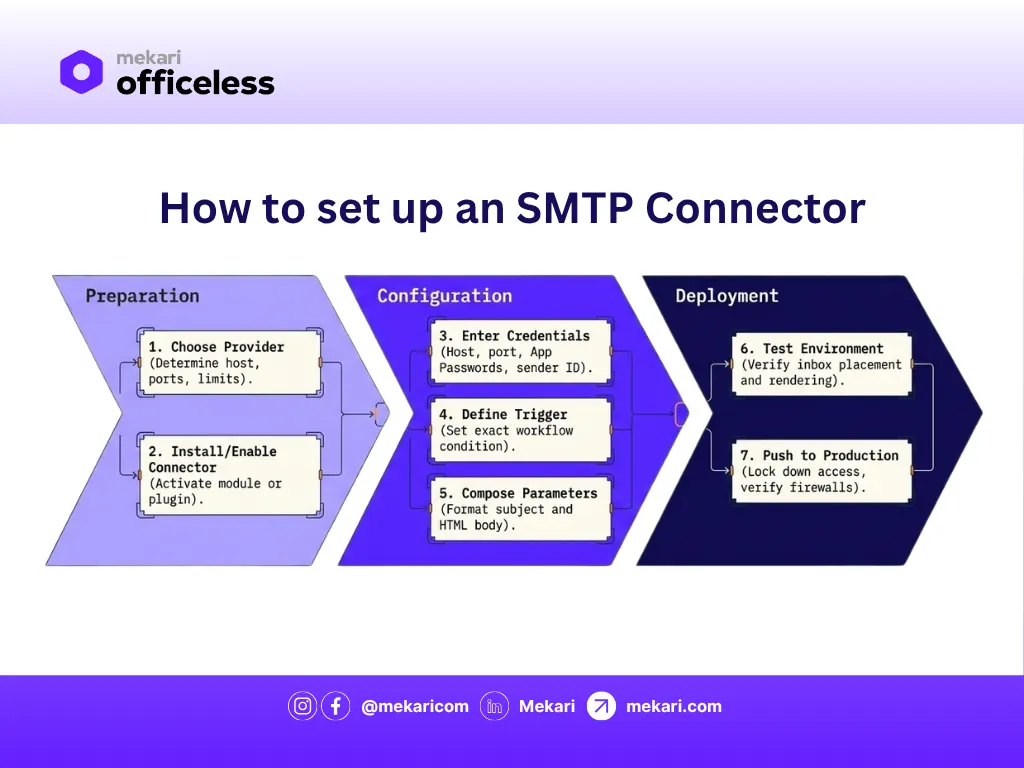
Configuring an SMTP connector for enterprise use involves a sequence of decisions that build on each other — from provider selection through to production deployment. Getting each step right the first time reduces the risk of delivery failures, authentication errors, and security gaps down the line.
1. Choose your SMTP provider
The provider decision comes first because it determines the host address, supported ports, and authentication requirements that follow. For teams already using Gmail, Outlook, or a cloud email service, the choice is usually already made.
For other teams building a dedicated notification or transactional email channel, the provider table in the prerequisites section is a practical starting point. The key criteria are sending volume, deliverability requirements, and whether the provider needs to comply with specific data residency or security policies.
2. Install or enable the SMTP Connector
The installation step establishes the connector as an active component within the workflow environment.
Depending on the platform, this involves enabling a built-in email module, adding a plugin, or integrating an SMTP library directly into the application code. Either way, the end state is the same: an SMTP connector that is ready to receive triggers and dispatch emails.
A prebuilt SMTP Connector, where available, could accelerate this process considerably.
3. Configure SMTP Credentials
With the connector in place, the next step is entering the SMTP credentials, such as host address, port number, encryption type, username, and password. These are typically configured via the platform’s connector settings or request headers, with credential storage handled by the platform’s authentication layer.
Use App Passwords rather than account passwords where MFA is enabled, and ensure the sender email address is authorized by the provider. Personal email accounts are best avoided for production workloads — they are subject to sending limits, lack audit controls, and create a single point of failure if the account is suspended or credentials change.
4. Define the Workflow Trigger
The action trigger is the event that causes the connector to send an email. This could be a form submission, a status change, a scheduled time, an API call, or any other event the workflow platform supports.
Defining the trigger correctly is what makes the notification system genuinely automated, enabling the email to go out the moment the condition is met, without any manual action required.
5. Compose the Email Parameters
With the action trigger defined, the email itself needs to be composed: sender name and address, recipient address, subject line, and body content.
Most enterprise SMTP connectors require the body to be structured as HTML rather than plain text, which ensures consistent rendering across email clients but requires that even simple notification messages be formatted accordingly.
6. Test in a non-production environment
Before deploying to production, send a test email and verify end-to-end delivery across three areas:
- Inbox placement: Confirm the email arrives in the recipient’s inbox, not the spam folder
- Sender display: Verify that the sender name and address appear correctly in the email client
- HTML rendering: Check that the body content displays as intended across different email clients
This step also surfaces authentication failures, port blocks, and firewall issues before they affect real workflow events.
7. Deploy to production
Once testing confirms that delivery, authentication, and rendering are all working correctly, the workflow is ready for production. Before going live, apply the following security baseline:
- Use App Passwords instead of account passwords wherever MFA is enabled
- Restrict connector access to trusted workflows only
- Avoid personal email accounts for production sending
- Store SMTP credentials securely within the platform’s authentication layer
For enterprise environments, coordinate with the IT or infra team to confirm that outbound rules on the chosen port are open and that the SMTP host is whitelisted at the firewall level.
Common SMTP connector pitfalls and how to fix them
Even with the prerequisites in place and the steps followed correctly, a few issues surface consistently across enterprise SMTP connector setups. Understanding why they happen and how to resolve them could save significant troubleshooting time.
1. Authentication Errors
Authentication failures are among the most common issues teams encounter after initial configuration. In most cases, the credentials are technically correct — the problem is that modern security settings on Gmail and Microsoft accounts block standard password login for third-party applications by design.
The fix is to generate a dedicated App Password from the account’s security settings and use that in place of the regular account password. This applies to any account with MFA enabled, regardless of the email provider.
2. Port 25 Restrictions
If emails fail silently or connections time out without a clear error, port 25 is often the cause.
Many ISPs block outbound traffic on port 25 by default to prevent spam relay. This happens at the network level, which is why the connector itself may show no error while delivery still fails.
Switching to port 587 with TLS or port 465 with SSL resolves this in most cases. Both are widely supported across enterprise SMTP providers and are the recommended alternatives for any external or production sending.
3. Firewall and outbound connection blocks
A correctly configured connector can still fail to deliver if outbound traffic on the chosen port is blocked at the network or firewall level. This is a common oversight in enterprise environments where inbound rules receive more attention than outbound ones.
The resolution is to whitelist the SMTP host address and confirm that outbound traffic on port 587 or 465 is permitted. For most enterprise setups, this requires coordination with the IT or infra team before the connector goes into production.
Integrate Email Into Your Workflows with a Prebuilt SMTP Connector
Connecting an SMTP connector to an enterprise workflow does not have to start from scratch.
Mekari Officeless offers a prebuilt SMTP Connector plugin that is compatible with Gmail, Outlook, Amazon SES, Mailgun, SendGrid, and custom SMTP servers, with authentication managed by the Mekari Platform.
The SMTP connector from Mekari Officeless serves several key features, including:
- Connect to external SMTP servers
- Support for TLS and SSL encryption
- SMTP authentication support
- HTML-only email content for consistent rendering
- Easy configuration via request headers
- Compatible with most SMTP providers
Beyond the prebuilt option, Mekari Officeless as an enterprise development platform also enables organizations to build a fully custom SMTP Connector tailored to specific workflow requirements. This gives teams complete control over how email delivery is integrated into their broader enterprise systems.
Explore Mekari Officeless SMTP Connector and start automating your enterprise email notifications today. You can also explore Mekari Officeless Marketplace for other prebuilt solutions for your business.
References
Zendesk. “Setting up the authenticated SMTP connector for two-way email relay”
MailEnable. “SMTP Connector”