


- A Google Sheets connector is an integration layer that enables data to flow automatically between business systems and Google Sheets without manual input, replacing exports and copy-paste routines with workflow-level automation.
- Leading connector tools in this space — including Mekari Officeless Google Sheets Connector, Zapier, Make, and Coupler.io — cover a range of use cases from scheduled data pipelines to real-time transactional writes across HR, Finance, Operations, and Sales workflows.
- Mekari Officeless offers a prebuilt google sheets connector as a top choice for enterprises that supports read, write, and conditional row update operations within enterprise workflows, with authentication managed securely through a Google Service Account via the Mekari Platform. For teams that need more flexibility, Mekari Officeless also provides an enterprise development platform where you can build custom no-code Google Sheets connectors without writing any code.
Most enterprise teams treat Google Sheets as a final destination where data gets pulled from systems, cleaned up manually, and pasted in for reporting. The process feels manageable until the volume grows.
A 2025 AutoRek survey of 500 senior finance managers found that 90% of organizations still rely on spreadsheets for vital business data, yet manual processing continues to introduce bottlenecks, delays, and compliance risks at scale. That reliance has a direct productivity cost as well, with ProcessMaker research finding that a typical office worker spends 3 hours per week working on spreadsheets such as Microsoft Excel or Google Sheets.
A Google Sheets connector solves this by automating the data flow between business systems and spreadsheets directly at the workflow level. Rather than replacing a tool your teams already know, it turns Google Sheets into an active, always-updated endpoint inside your automated processes.
This article covers how Google Sheets connectors work, the enterprise use cases that deliver the most value, and a side-by-side comparison of the tools available today.
What is a Google Sheets connector?
A Google Sheets connector is a tool or plugin that connects Google Sheets to external systems, applications, or automated workflows, enabling data to move in and out of spreadsheets without manual input.
Rather than treating Google Sheets as a static destination that someone has to update, a connector makes it a live participant in your operational processes.
Google Sheets connectors come in several types, each suited to different use cases and technical environments.
- Native add-ons are built directly into Google Sheets and installed through the Google Workspace Marketplace, making them accessible without leaving the spreadsheet interface.
- Workflow automation connectors are embedded inside no-code or low-code platforms as prebuilt action nodes, allowing Google Sheets to send and receive data as part of a larger automated workflow.
- Data pipeline connectors are designed for scheduled, recurring data pulls or pushes between external data sources and Sheets, most commonly used for reporting and analytics.
- API-based connectors sit on top of the Google Sheets API and offer more configurability, but still require some technical setup to deploy and maintain.
The right type depends on where Google Sheets sits in your operations. For teams that need spreadsheets to update automatically as part of a broader workflow, rather than as a standalone reporting tool, workflow automation connectors are generally the most practical fit.
Google Sheets connector use cases for enterprise teams
Google Sheets remains one of the most widely used operational tools in enterprise environments, but its value depends entirely on the quality and freshness of the data inside it. When that data still arrives through manual exports and copy-paste routines, the spreadsheet becomes a lagging record rather than a working one.
The use cases below cover how a Google Sheets connector changes that dynamic across the functions where the gap between systems and spreadsheets is most costly.
1. Automated financial and procurement reporting
Finance and procurement teams still close reporting cycles manually, pulling data from ERPs or accounting platforms and pasting it into shared spreadsheets on a fixed schedule.
A Google Sheets connector removes that dependency by writing financial and procurement workflow outputs directly into Google Sheets the moment a trigger condition is met, keeping reports current without anyone maintaining them.
Here are some of the most common financial and procurement processes where a Google Sheets connector delivers immediate value:
- Purchase order approval workflows that log each approved PO to a designated Sheets tab, including vendor, amount, approver, and timestamp.
- Invoice processing workflows that write payment status updates to a tracker as each invoice moves through the approval chain.
- Budget utilization workflows that push spending data from tools like Mekari Expense or Mekari Jurnal into a consolidated Sheets dashboard at defined intervals.
- Month-end closing workflows that compile transaction records into a structured format in Sheets, ready for review or handoff to Looker Studio for visualization.
2. Real-time operational tracking and SLA monitoring
Without a centralized view, tracking SLA compliance means chasing updates across systems and waiting for end-of-day summaries that are already outdated by the time they arrive.
A Google Sheets connector gives ops teams a live tracking layer by writing workflow outputs directly into Sheets as each process completes, turning the spreadsheet into a continuously updated operational record that anyone with access can read without touching the underlying system.
Across operational contexts, a Google Sheets connector is most commonly applied to the following types of processes:
- Field operations workflows that log job completion status, location, and resolution time to a Sheets tracker as each task closes
- Internal service request workflows that write ticket status updates to a shared SLA dashboard each time a request moves between stages
- Vendor or contractor performance workflows that record delivery confirmation and SLA adherence data into Sheets for periodic review
- Escalation workflows that flag overdue items by writing exception records to a separate Sheets tab when a defined time threshold is breached
SLA exceptions surface through the data rather than through manual review, with a visualization tool like Google Data Studio pulling from that sheet to reflect current performance at any point in the day.
3. HR data sync and headcount logging
When HR data still moves manually between systems and spreadsheets, the roster is always one step behind the actual state of the workforce.
A Google Sheets connector keeps HR data current by writing records from onboarding, offboarding, and attendance workflows directly into Sheets as each process completes, with teams on platforms like Mekari Talenta or BambooHR able to push structured outputs into Sheets without manual exports.
The following HR processes are where a connector typically has the most direct impact on data accuracy and team efficiency:
- Onboarding approval workflows that log each new hire record to a headcount tracker in Sheets, including department, role, start date, and approver
- Offboarding workflows that update employee status in a Sheets roster automatically when an exit process reaches completion
- Attendance and leave workflows that write monthly summaries to a Sheets dashboard for review by HR leads or finance teams processing payroll inputs
- Contract renewal workflows that record upcoming renewal dates and current contract status to a Sheets tracker for proactive follow-up
For companies scaling headcount across multiple departments simultaneously, the headcount view in Sheets always reflects what the HR system already knows.
4. Customer and sales data logging from CRM workflows
When pipeline data still moves manually from the CRM to a spreadsheet, the version leadership sees is always a few steps behind what the sales team is actually working on.
A Google Sheets connector closes that gap by writing CRM workflow outputs directly into Sheets as each event occurs, with teams on platforms like Salesforce or Mekari Qontak able to route structured data into Sheets automatically without anyone running exports or reconciling records between tools.
A connector is most valuable in sales and CRM contexts where the following types of workflow events generate data that other teams need visibility into:
- Deal stage update workflows that log each pipeline movement to a Sheets tracker, including deal name, stage, owner, and estimated close date
- New contact workflows that write incoming lead records to a Sheets register as each contact enters the CRM
- Follow-up outcome workflows that record call or meeting results to a shared Sheets log for cross-team visibility
- Customer escalation workflows that push unresolved case records to a Sheets tracker when a defined response threshold is breached
For high-volume sales teams managing pipelines across multiple territories, finance and leadership always have an accurate view without pulling anyone off active selling to compile a report.
5. Lightweight data storage for workflow outputs
Not every enterprise workflow needs a full database behind it, but structured records still need to land somewhere accessible.
A Google Sheets connector makes Google Sheets viable as an operational data layer by writing workflow outputs to a designated sheet the moment a process completes, without provisioning a database or involving a developer every time the structure needs to change.
The following are the workflow output types where Google Sheets works most effectively as a lightweight data store when paired with a connector:
- Form submission workflows that write each incoming response to a structured Sheets table, preserving field order and formatting without manual cleanup
- Internal approval workflows that log each decision record to Sheets, including requester, approver, timestamp, and outcome, creating a reliable audit trail
- Asset or inventory request workflows that write each request and its resolution status to a Sheets tracker for ops or procurement review
- Incident or exception logging workflows that push structured exception records to Sheets as each event is captured, supporting compliance and monitoring needs
For teams that need structured records without database overhead, the result is a data layer that is familiar, shareable, and automatically maintained.
6. Automated workflow result logging for audit and compliance
Regulated industries and compliance-heavy functions generate workflow events that need to be recorded, timestamped, and accessible for review, but retrieving those records for an audit becomes difficult when they live only inside the workflow system.
A Google Sheets connector solves this by writing workflow results to a designated Sheets log automatically as each event completes, creating a structured, shareable audit trail that does not depend on access to the underlying system.
The following are the workflow types where automated logging to Sheets delivers the most value for audit and compliance purposes:
- Approval workflows that write each decision record to Sheets, including the requester, approver, timestamp, and outcome, creating a reliable log for internal and external review
- Policy acknowledgment workflows that log each employee confirmation to a Sheets tracker as each submission is received
- Document review workflows that record each review stage, reviewer, and sign-off date to a Sheets audit log as the document moves through the process
- Exception and escalation workflows that push structured records to Sheets whenever a defined threshold is breached, supporting incident documentation and regulatory reporting
For teams that need audit-ready records without building a separate reporting infrastructure, the log is always current and accessible to the people who need it.
7. Email notification logging and delivery tracking
Automated workflows frequently include an email notification step, but knowing an email was sent is different from having a structured record of what was sent, to whom, and when.
A Google Sheets connector bridges that gap by logging email delivery data from notification workflows directly into Sheets as each message is dispatched.
This works particularly well when combined with an SMTP connector that handles the actual email sending within the workflow. The SMTP Connector manages the delivery, while the Google Sheets Connector captures the result, giving teams a complete and automatically maintained record of every outbound notification without manual tracking.
The following are the workflow contexts where email notification logging to Sheets is most useful:
- Approval notification workflows that log each outbound email, including recipient, subject, timestamp, and triggered workflow, to a Sheets tracker for delivery confirmation
- Customer communication workflows that write each notification record to a Sheets log, supporting follow-up and dispute resolution when delivery needs to be verified
- Internal alert workflows that record each exception notification to Sheets, creating a traceable history of when teams were informed about operational issues
- Scheduled report delivery workflows that log each report distribution event to Sheets, confirming which recipients received which report at which time
For teams running high-volume notification workflows, verifying whether a communication was sent becomes a matter of checking a spreadsheet rather than querying a system.
Top 7 Google Sheets Connector for Enterprise Teams
The tools available for connecting Google Sheets to external systems vary significantly in how they work, who they are built for, and where they fit in an enterprise workflow stack.
Some connectors are designed for developers who need direct API access, others for marketing or analytics teams pulling data into Sheets for reporting, and others for ops or IT teams building automated workflows across business functions.
Here are 7 best Google Sheets connectors that represent the main options available today across connector types, evaluated on the dimensions that matter most for enterprise contexts:
| Google Sheets Connector | Best For | Connector Type | Limitations |
|---|---|---|---|
| Mekari Officeless Google Sheets Connector | Enterprise teams automating cross-domain workflows across HR, Finance, Ops, and Sales | Prebuilt plugin in Officeless Marketplace, and no-code workflow automation connector | Sheet structure and column headers must be set up in advance before the connector can write data |
| Zapier | Teams connecting Google Sheets to SaaS apps through simple trigger-action automations | No-code workflow automation connector | Can become costly at high task volumes, limited logic complexity |
| Make (formerly Integromat) | Teams that need more advanced workflow logic with multi-step branching and data transformation | No-code and low-code workflow automation connector | Steeper learning curve than Zapier, scenario complexity grows quickly |
| Coupler.io | Analytics and reporting teams that need scheduled data imports from multiple sources into Sheets | Data pipeline connector | Primarily one-directional, less suited for write-back or transactional workflows |
| Supermetrics | Marketing and performance teams pulling campaign and channel data into Sheets for reporting | Data pipeline connector | Narrow use case, limited to marketing data sources |
| API Connector by Mixed Analytics | Technical users who need to pull data from any REST API directly into Sheets | Native add-on with API configuration | Requires deep understanding of API structure and authentication, not suitable for non-technical users |
| Apipheny | Developers or technical analysts building custom API-to-Sheets integrations | API-based connector | No workflow automation capability, functions as a data retrieval tool only |
1. Mekari Officeless – Prebuilt Google Sheets Connector Plugin
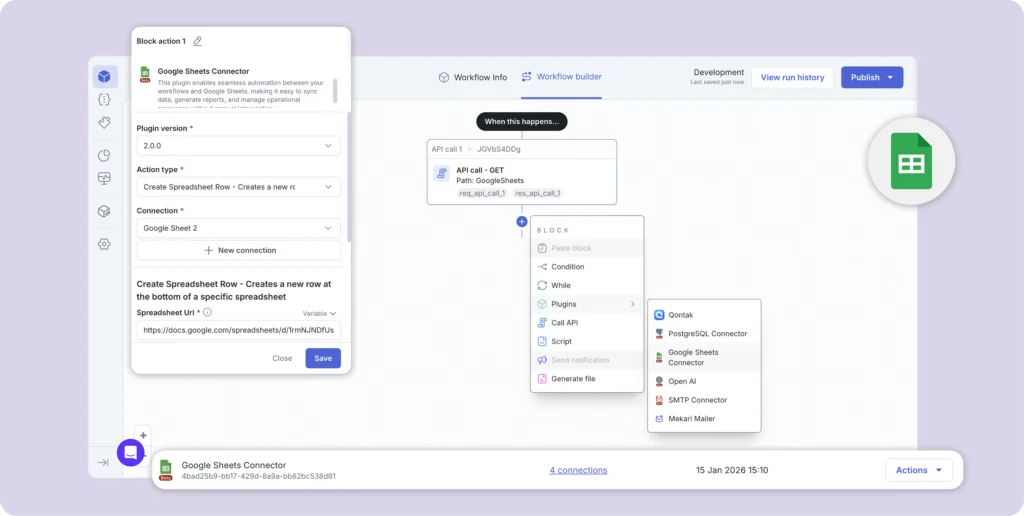
Mekari Officeless offers a prebuilt Google Sheets Connector plugin that is available through Mekari Officeless Marketplace that enables seamless automation between enterprises workflows and Google Sheets, making it easy to sync data, generate reports, and manage operational processes without manual intervention.
The authentication is managed by the Mekari Platform through a Google Service Account, removing the need for teams to handle credential configuration manually.
Key features:
- Read data from a specific Google Sheets range within a workflow
- Write and insert new rows using structured payloads, supporting multiple rows and columns in a single request
- Update an existing row based on condition matching against a value in a specific column, with support for Excel formulas (available from version 2.0.0)
- Service Account authentication managed by Mekari Platform, with access scoped to required spreadsheets only
- Compatible with standard Google Sheets and Google Workspace accounts
One thing to account for before deployment is that the sheet structure, including column headers and layout, must already exist in the spreadsheet before the connector can write data to it. The connector writes data in the order provided in the values array, so the sheet structure needs to match the workflow output.
If your use case requires more flexibility than a prebuilt plugin can offer, Mekari Officeless also provides an enterprise development platform that lets you build a custom no-code Google Sheets connector without writing a single line of code.
Best for: Enterprise teams running cross-domain workflows across HR, Finance, Operations, and Sales that need Google Sheets to update automatically as part of a larger automated process, without involving a developer for setup or maintenance.
2. Zapier
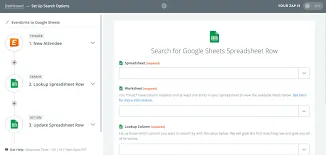
Zapier is a no-code automation platform that connects Google Sheets to thousands of SaaS applications through trigger-action workflows, with a straightforward setup and an extensive library of prebuilt integrations that non-technical users can configure independently.
Key features:
- Trigger workflows from new or updated rows in Google Sheets, or write data to Sheets when an event occurs in a connected app
- Supports multi-step Zaps that chain multiple actions across different tools in a single workflow
- Large library of prebuilt connectors covering most common SaaS applications
- No-code interface with a guided setup process suitable for non-technical users
- Filter and formatting options to control how data is structured before it reaches Sheets
Zapier pricing scales with task volume and workflow logic is relatively limited, making it less suitable for high-frequency automations or processes that require conditional branching.
Best for: Teams connecting Google Sheets to common SaaS tools through simple trigger-action automations at moderate task volumes.
3. Make (formerly Integromat)
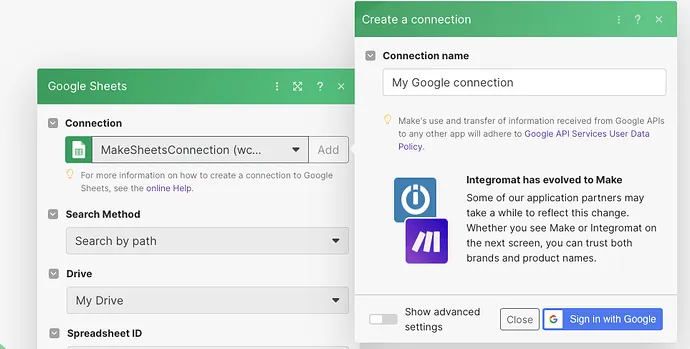
Make is a no-code and low-code automation platform that connects Google Sheets to external systems through visual workflow scenarios, offering significantly more control over logic, branching, and data transformation than simpler automation tools.
Key features:
- Visual scenario builder that maps data flow between Google Sheets and connected apps
- Supports advanced workflow logic including conditional branching, iterators, and aggregators
- Read, write, update, and search operations on Google Sheets data within a single scenario
- Data transformation tools that allow formatting and restructuring of data before it is written to Sheets
- More granular control over scheduling, error handling, and retry logic than simpler automation tools
However, Make has a steeper learning curve than simpler tools, and scenarios can become difficult to maintain as complexity grows.
Best for: Teams that need advanced workflow logic, multi-step branching, or data transformation before data reaches Google Sheets.
4. Coupler.io
Coupler.io is a data pipeline tool that automates scheduled imports from multiple external sources into Google Sheets, optimized for consolidating data for reporting and analytics rather than event-driven or transactional workflows.
Key features:
- Scheduled data imports from a wide range of sources including CRMs, advertising platforms, databases, and project management tools
- Supports blending and transforming data from multiple sources before loading into Sheets
- Automatic refresh on a defined schedule without manual intervention
- Preview and field mapping interface that allows users to control which data lands in which columns
- Supports export from Sheets to other destinations in some configurations
Coupler.io is primarily one-directional, so teams that need event-driven or transactional workflows where Sheets receives data the moment something happens will find it less suited to those requirements.
Best for: Analytics and reporting teams consolidating data from multiple sources into Sheets on a recurring schedule.
5. Supermetrics
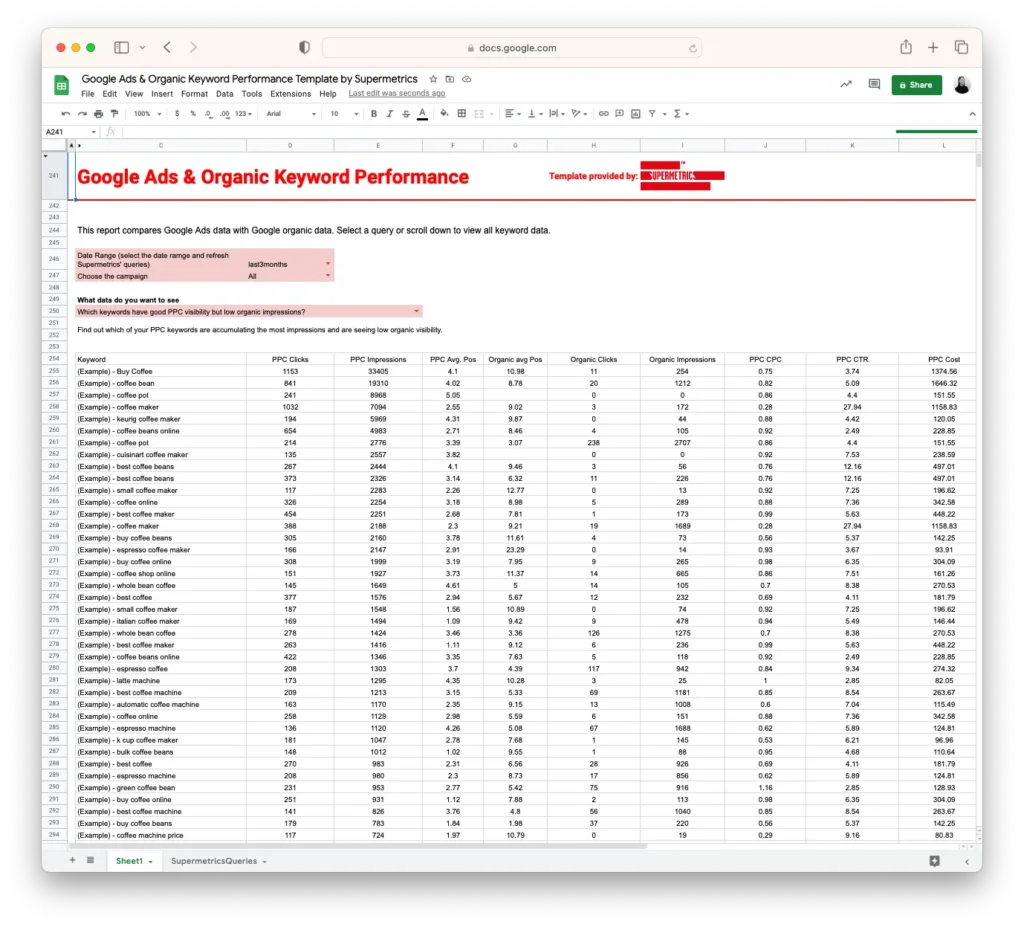
Supermetrics is a data pipeline tool built specifically for marketing and performance teams, connecting major advertising and analytics platforms to Google Sheets on an automated refresh schedule to replace manual exports.
Key features:
- Prebuilt connectors for major marketing and advertising platforms including Google Ads, Meta Ads, LinkedIn Ads, and Google Analytics
- Scheduled data refreshes that keep Sheets updated without manual intervention
- Query builder interface that allows users to define which metrics, dimensions, and date ranges to pull
- Supports blending data from multiple marketing sources into a single Sheets report
- Available as a Google Sheets add-on, installable directly from the Google Workspace Marketplace
Supermetrics is built exclusively around marketing data sources, so teams needing to connect Sheets to operational systems, CRMs, or financial tools will need a different connector entirely.
Best for: Marketing and performance teams that need to automate the flow of campaign and channel data into Google Sheets for reporting, without relying on manual exports from individual platforms.
6. API Connector by Mixed Analytics
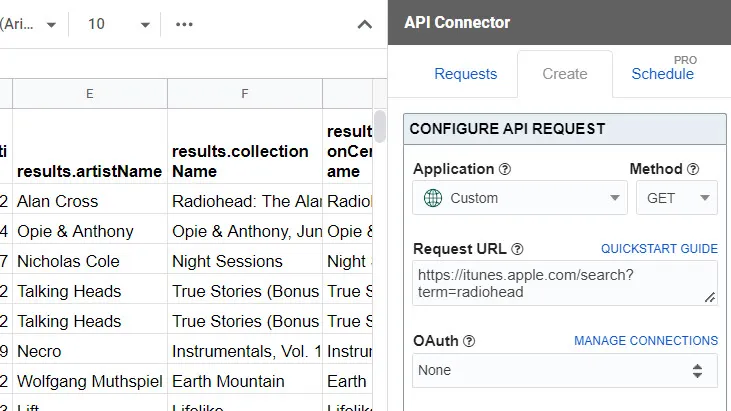
API Connector is a Google Sheets add-on that allows users to connect to any REST API and pull the response data directly into a spreadsheet.
This Google Sheets API connector sits closer to the technical end of the connector spectrum, requiring users to understand the structure of the API they are connecting to, including endpoints, authentication methods, and query parameters.
However, it offers significant flexibility for teams that need to pull data from sources without a prebuilt connector.
Key features:
- Connect to any REST API directly from within Google Sheets without leaving the spreadsheet interface
- Supports common authentication methods including API key, OAuth 2.0, and Basic Auth
- Scheduled automatic refreshes that keep Sheets updated from the connected API on a defined interval
- Request chaining that allows users to use data from one API response as an input to the next request
- Output formatting options that control how API response data is structured in the sheet
However, API Connector requires a solid understanding of API structure, endpoint configuration, and authentication methods, making it unsuitable for non-technical users.
Best for: Technical users pulling data from a specific API into Sheets who are comfortable configuring API requests and authentication independently.
7. Apipheny
Apipheny is a Google Sheets add-on that lets users import data from any REST API by writing API requests directly inside the spreadsheet, designed for those who want a lightweight retrieval tool without a separate automation platform.
Key features:
- Import data from any REST API into Google Sheets using API requests written directly in the spreadsheet
- Supports API key and header-based authentication configurations
- Scheduled automatic refreshes that re-run API requests and update Sheets at defined intervals
- Supports pagination handling for APIs that return data across multiple pages
- Lightweight setup with no external platform required beyond the Sheets add-on itself
Apipheny has no workflow automation capability and functions purely as a data retrieval tool, so teams that need event-driven or transactional Sheets integrations will need to look elsewhere.
Best for: Developers or technical analysts who need a simple, low-overhead way to retrieve REST API data into Sheets without workflow automation capabilities.
How to connect Google Sheets to your enterprise workflows
Connecting Google Sheets to an automated workflow follows the same general sequence regardless of which connector tool you use. Understanding the basic setup pattern helps teams evaluate which tool fits their existing stack and how quickly they can expect to go from configuration to a live integration.
A typical Google Sheets connector setup involves the following steps:
- Choose a connector type that matches your use case, whether a prebuilt plugin, a no-code automation platform, or an API-based add-on
- Authenticate the connector with your Google account or Google Service Account, depending on the tool and the level of access control your organization requires
- Define the specific Google Sheets action the connector will perform, such as reading from a range, inserting new rows, or updating existing rows based on a condition
- Map the data fields from your workflow or source system to the corresponding columns in your spreadsheet
- Test the connection to verify that data arrives in the correct sheet, in the correct column order, and in the expected format
- Activate the workflow and confirm that the connector runs automatically without manual intervention
One consideration that applies across most connector types is that the sheet structure, including column headers and layout, needs to exist before the connector can write data to it. Setting this up in advance prevents formatting issues once the connector goes live.
Automate your Google Sheets workflows with a prebuilt connector
Most API-based and native add-on connectors shift the integration burden onto developers, requiring custom configuration, ongoing maintenance, and involvement every time a workflow changes.
Ready-to-use prebuilt and custom no-code connectors remove that dependency entirely, letting ops and IT teams build, deploy, and iterate on Google Sheets integrations without writing a single line of code.
Mekari Officeless offers those two ways for enterprise teams to connect Google Sheets to their operational workflows:
- Prebuilt Google Sheets Connector, a ready-to-deploy plugin available through the Mekari Officeless Marketplace that connects enterprise workflows to Google Sheets without any developer setup.
- Enterprise development platform, a low-code and no-code environment for enterprise teams that need a custom Google Sheets integration built around their own specific processes and operational requirements.
Those two Google Sheet connector solutions from Mekari Officeless support the various use cases in enterprises, such as:
- Automating operational reporting across finance, procurement, and HR functions
- Synchronizing data between business systems and Google Sheets in real time
- Logging workflow results to Sheets for audit trails and compliance records
- Tracking operational performance and SLA status through a live Sheets dashboard
- Using Google Sheets as a lightweight data store for form submissions and approval records
If your team is still closing spreadsheet bottlenecks and gaps manually, there is a faster way to get there. Eliminate manual data entry between your business systems and Google Sheets with Mekari Officeless Google Sheets Connector.
References
Zapier. (2025). “How to get started with Google Sheets on Zapier”
Google Cloud. (2025). “Google Sheets API connector overview”